The hub said 'no internet'. The packets said otherwise.
I recently had underfloor heating installed with a Wunda Smart HubSwitch. The hub refused to finish setup, insisting it had no internet connection. My network disagreed. This is the story of working out who was right, mostly by reading packets.
The setup
My home network is a slightly mixed bag:
- Ubiquiti UniFi access points (including a U6 Pro in the kitchen), managed by the UniFi controller with a third-party gateway
- A TP-Link Omada router doing routing and DHCP
- A dedicated IoT VLAN (VLAN 107,
192.168.107.0/24) with its own SSID, broadcast on 2.4 GHz only, because most smart home devices still can’t do 5 GHz
The UniFi APs tag IoT traffic with VLAN 107 and hand it to the Omada router, which does everything else.
The symptoms
The Wunda app walks you through setup in a few steps. “Connecting to the device” and “Configuring the device” both succeeded, then “Waiting for connection” failed every time:
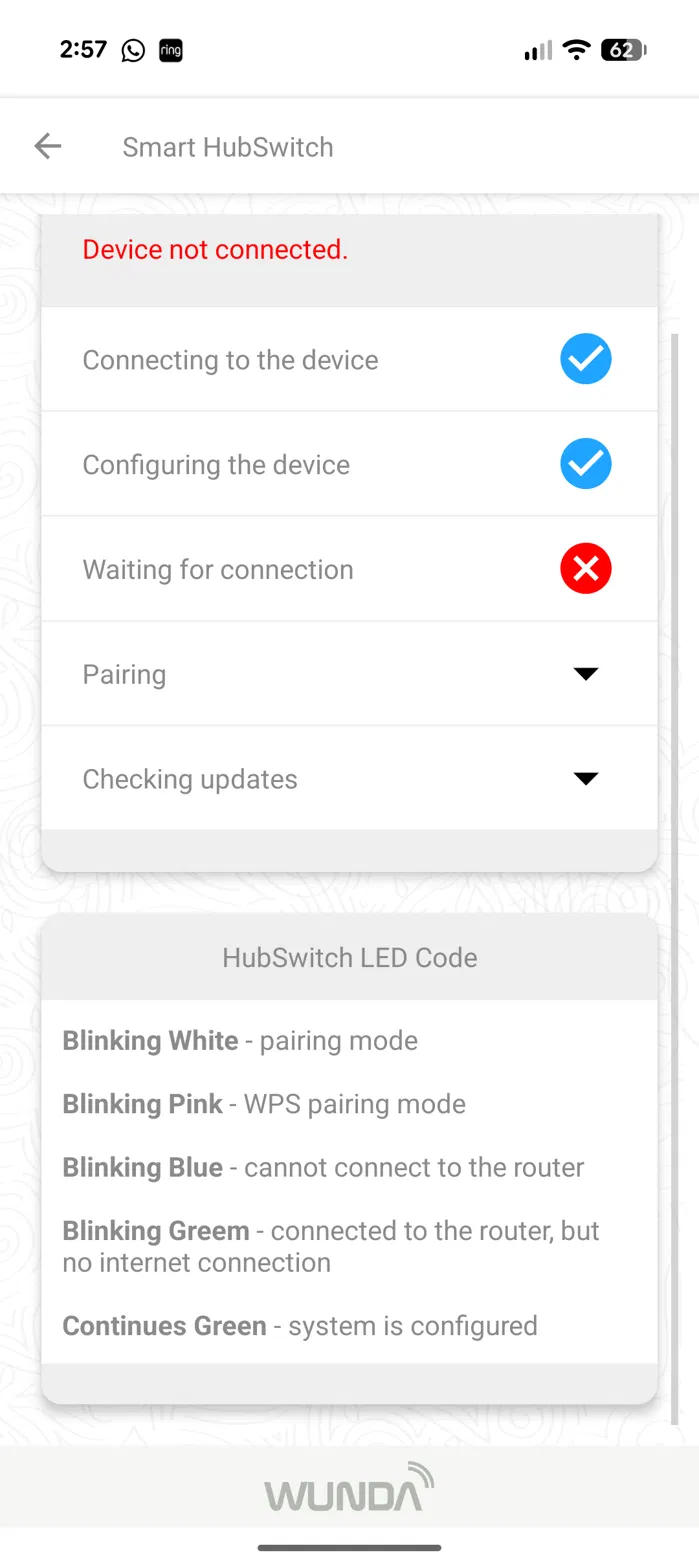
The hub’s LED told a consistent story:
- Blinking white: pairing mode
- Blinking green: connected to the router, but no internet
- Blinking blue: can’t connect to the router
Then the cycle repeated. The UniFi client log matched: the hub would connect, stay for about a minute, transfer a few kilobytes, drop, and reconnect.
Ruling out the usual suspects
Smart home devices and UniFi have a long history of not getting along, so I started with the usual list:
- WiFi settings: WPA2 only (no WPA3 transition mode), PMF disabled, fast roaming off, proxy ARP off, client isolation off. Signal was a healthy -40 dBm on channel 6.
- Firewall rules: my only Omada ACL (blocking IoT from the main network) was disabled anyway.
- DNS: I suspected Pi-hole, but the IoT VLAN hands out
8.8.8.8and9.9.9.9directly. - Internet on the VLAN: I joined my phone to the IoT SSID and loaded
https://1.1.1.1(testing routing without DNS) and a normal website (testing DNS on top). Both worked. - The VLAN itself: I created a bare-bones test SSID on the default network with every advanced feature turned off. Same failure.
At this point everything checked out on paper, and the hub still swore it had no internet. Time to stop guessing.
Going to the packets
It turns out UniFi APs support SSH and ship with tcpdump. After enabling device SSH in the controller, I found the bridge carrying VLAN 107:
$ ip link | grep 107
26: eth0.107@eth0: ... master br0.107
30: br0.107: ...
34: wifi0ap2.107@wifi0ap2: ... master br0.107
37: wifi0ap6.107@wifi0ap6: ... master br0.107
br0.107 bridges the wired uplink (eth0.107) with the 2.4 GHz SSIDs (wifi0ap*), so it sees everything the hub sends and receives. Filtering by the hub’s MAC address catches both IPv4 and IPv6 traffic, and -A prints payloads as text:
tcpdump -n -A -i br0.107 ether host <hub MAC>Capture 1: everything works, then silence
The first capture was oddly reassuring:
IP 192.168.107.1.67 > 192.168.107.21.68: BOOTP/DHCP, Reply
ARP, Reply 192.168.107.1 is-at 48:22:54:...
IP 192.168.107.21 > 8.8.8.8.53: A? time.nist.gov.
IP 8.8.8.8.53 > 192.168.107.21: A 132.163.97.2
IP 192.168.107.21 > 132.163.97.2.123: NTPv4, Client
IP 132.163.97.2.123 > 192.168.107.21: NTPv3, Server
IP 192.168.107.21.15000 > 255.255.255.255.47668: UDP, length 235
DHCP, ARP, DNS and NTP all worked within milliseconds. Then a UDP broadcast on port 15000, and then nothing. No lookup for anything Wunda related, no connection attempts. The hub wasn’t being blocked from its cloud. It just wasn’t trying.
Capture 2: the app wakes it up
The next capture caught the app in action. My phone connected to a web server running on the hub:
IP 192.168.107.20 > 192.168.107.21.80: GET /info.cgi HTTP/1.1
IP 192.168.107.21.80 > 192.168.107.20: HTTP/1.1 200 OK
IP 192.168.107.20 > 192.168.107.21.80: GET /setregister.cgi?cmd_reset=1 HTTP/1.1
IP 192.168.107.21.80 > 192.168.107.20: HTTP/1.1 200 OK
Plain HTTP, on the local network. After that command, the hub reconnected and finally reached out:
IP 192.168.107.21 > 8.8.8.8.53: A? my.wundasmart.com.
IP 8.8.8.8.53 > 192.168.107.21: A 51.77.114.65
IP 192.168.107.21 > 51.77.114.65.443: Flags [S]
IP 51.77.114.65.443 > 192.168.107.21: Flags [S.]
A full TCP and TLS handshake followed: client hello, the server’s certificate chain, key exchange, then a 244 byte request and a 241 byte response, and a clean close. The hub repeated this roughly every 20 seconds.
So the hub could reach Wunda’s server, complete a secure connection, and get an answer. Whatever “no internet” meant, it didn’t mean no internet.
Capture 3: the details
Running with -A turned up a handful of interesting things hiding in the payloads.
The WiFi chip identifies itself in DHCP. The DHCP request contained WINC1500-19.7.10: a Microchip ATWINC1500 module running firmware 19.7.10. It’s a constrained part that handles TLS on the chip itself, which made me wonder about certificate trouble.
The certificate is fine. The ASCII dump showed Wunda’s Let’s Encrypt certificate for my.wundasmart.com. If the hub had rejected it, it would have sent a TLS alert and hung up straight after receiving it. Instead it carried on to the key exchange. There was also a DOWNGRD string in the server’s hello, which is just the TLS 1.3 downgrade marker: the server supports 1.3, and dropped to 1.2 for the WINC1500.
The discovery broadcast is readable XML. That port 15000 broadcast is how the app finds the hub:
<broadcast><hardware type="wunda" hardwareversion="5.0"
softwareversion="1.0.1.10" configversion="1.0.0.0" company="WUNDA"
sn="..." name="wunda" mac="..." ip="192.168.107.21" rfp="1" /></broadcast>
A configversion of 1.0.0.0 hints that the hub has never completed setup.
Proof the traffic reaches the internet. At one point my ISP’s router sent back an ICMP “network unreachable”. That can only happen if the hub’s packet left my network.
A firmware bug. That ICMP was in response to an NTP request sent to 9.51.7.0. Over several captures the hub sent NTP requests to 9.51.5.0, 9.51.7.0 and 7.51.4.0. A misconfigured server would stay the same; a value that shifts like this looks like the firmware reading garbage memory. Its primary time sync works fine, so it’s harmless, but it’s not a great sign.
The hub looks for my phone. Right after talking to the cloud, the hub sent an ARP request for 192.168.107.20, the IP my phone had during setup. Nothing answered.
The phone problem
That unanswered ARP explained the “Waiting for connection” step. Setup works like this:
- The phone joins the hub’s own temporary WiFi network
- The app sends the hub your WiFi details
- The phone leaves the hub’s network and rejoins whatever known network it prefers
Step 3 is the trap. My phone happily went back to the main network, on a different VLAN. The hub’s discovery broadcast can’t cross VLANs, and the hub looks for the phone on its own subnet, so the two never find each other again.
The fix was to turn off auto-connect for every other saved network on my phone, so the IoT SSID was the only place it could go. On Android, it also helps to turn off mobile data during setup, so the phone doesn’t quietly route around a WiFi network that has no internet.
With that sorted, the app finally got further, and gave me a new error:
Invalid response from the server (0x8000)
Where that leaves things
By this point the evidence was fairly conclusive:
- The hub joins WiFi, gets an IP, and syncs time
- It resolves Wunda’s server, completes TLS, and exchanges data with it every 20 seconds
- The app can talk to the hub over the local network
- The server’s response is what the app considers invalid
The problem is on Wunda’s side: an account registration issue, a server change, or an incompatibility between the hub’s firmware and their current backend. I’ve sent them the details, including the timestamps of specific connections they can look up in their logs.
Update: Wunda’s developers identified the issue within a day. The hub was running outdated firmware (1.0.1.10) that wasn’t compatible with their current server. The fix was a manual firmware update:
- Put the hub in setup mode (hold the setup button until the light flashes white)
- Connect your phone to the hub’s WiFi network and note its IP address
- Visit
http://<hub IP>/setregister.cgi?cmd_update=1in a browser - Log in with username
rootand passwordroot - Wait for the update to complete (the hub cycles through several LED colours, then settles on solid green)
- Send a photo of the hub’s MAC address to support, who then pair it to your account
After the update, the hub appeared in the app under “My Systems (Owner)” and everything worked as expected. The whole support exchange took less than 24 hours, which is impressive given I sent them packet captures on a Friday evening.
Lessons
IoT devices say “no internet” when they mean “I didn’t get the answer I expected”. The LED was technically accurate from the hub’s point of view, and completely misleading from mine.
Packets beat theories. I spent a while reasoning about WiFi settings, ACLs and DNS. Ten minutes of tcpdump answered more than all of that combined, and turned “it doesn’t work” into something a support team can act on.
Your access points can probably capture traffic. UniFi APs have tcpdump built in, and the controller also offers a GUI packet capture. The bridge interface for a VLAN is the sweet spot: it sees traffic after it leaves the radio and before it hits your router.
Watch out for VLANs during setup flows. Anything that relies on your phone and a device finding each other on the local network will break if your phone wanders back to a different VLAN halfway through.
Your IoT VLAN is there for a reason. This hub runs an unencrypted, password-protected web server that accepts reset commands. Anything else on the IoT network can watch those credentials go past. That’s exactly the kind of device that belongs on an isolated network.